The Beam punch kiosk is a shared device in your location, with a web browser, that lets your whole team clock in within seconds using their PIN. Besides clocking in, each employee can see how long they have worked today, their breaks, notes from their manager, pending tasks, and notifications.
This article describes the new kiosk. If your location still uses the previous version, see Clocking from a shared-device in your location.
Requirements: time-tracking enabled on the schedule, and a manager or administrator to activate the kiosk.
1. Activate the kiosk (managers and administrators only)
- Open https://app.beamhr.com/#/mlogin on the device. It’s the same address as before, so your bookmarks and shortcuts still work.
- Enter the company, your manager username and your password, then click Continue.
- Choose the calendars that will clock in on this kiosk. You’ll see the employees in each calendar and the total.
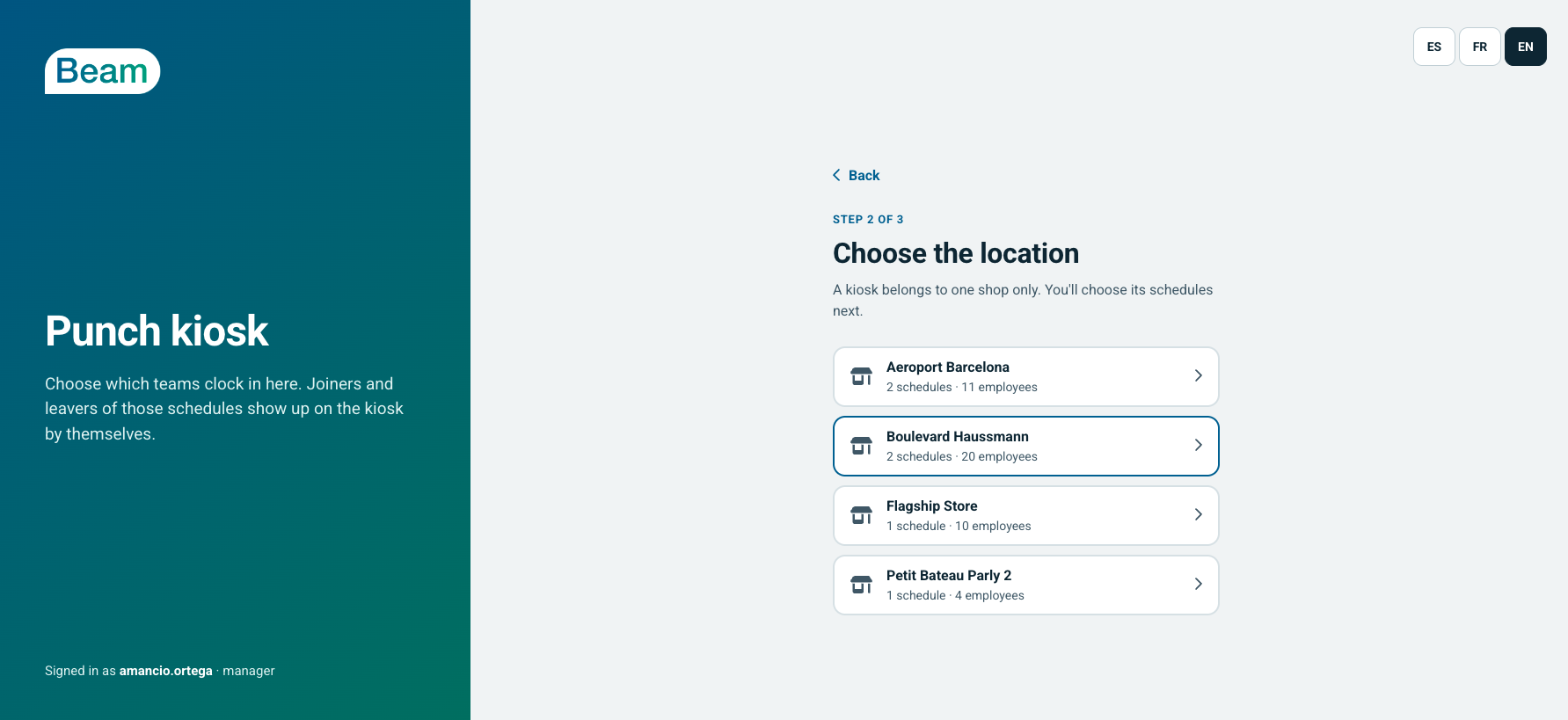
- Click Activate kiosk.
Employees from those calendars appear automatically, and employees added to or removed from those calendars are picked up on their own. You only need to activate it once per device.
2. Select your profile
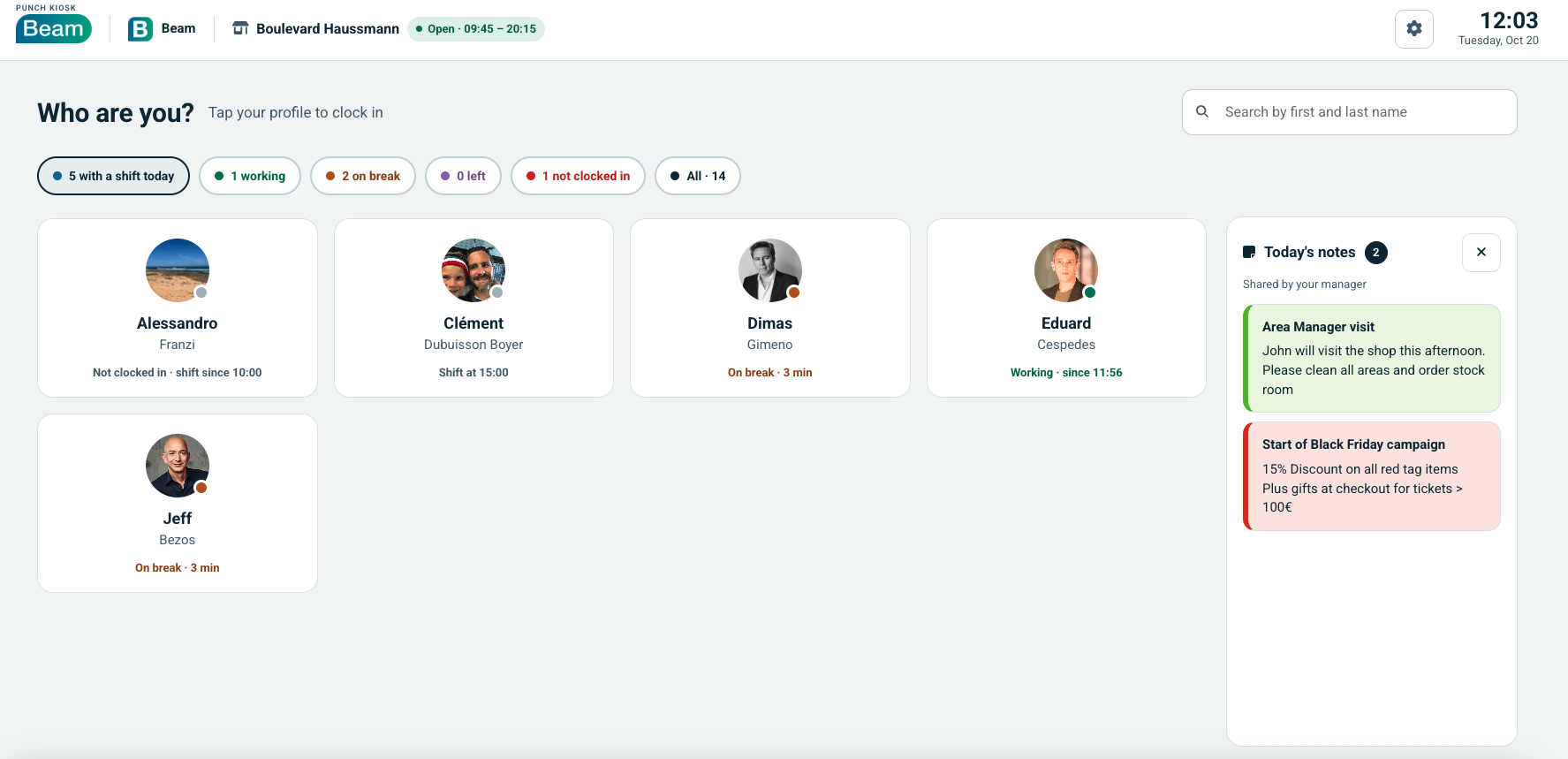
Each employee taps their own profile. You can search by first and last name, or filter by status: with a shift today, working, on break, left, or not clocked in. Each profile shows the employee’s status and shift. At the top, you’ll see the location, its opening hours, and the time.
If there are notes for today, they appear at the top; tap one to open the details on the right side of the screen. They are created by the calendar’s manager, directly from the calendar.
3. Enter your PIN
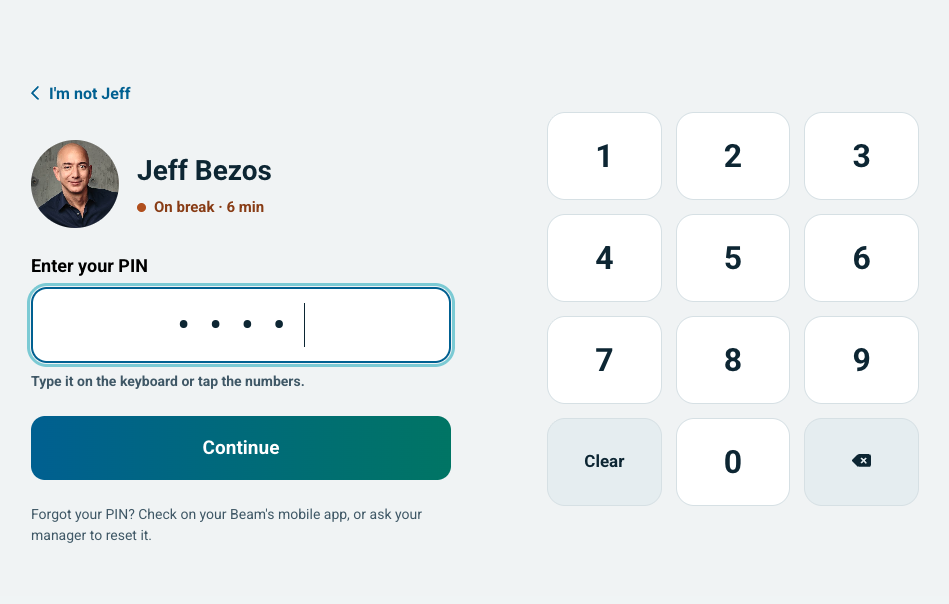
Your PIN has 4 to 6 digits and can be typed on the keyboard or entered by tapping the numbers on screen. It is assigned from your employee profile in the web app. If you picked the wrong profile, tap Not me… to go back. If you’ve forgotten your PIN, you can look it up in your profile in the Beam mobile app. Otherwise, your manager can reset it from your profile.
4. Clock in for your shift
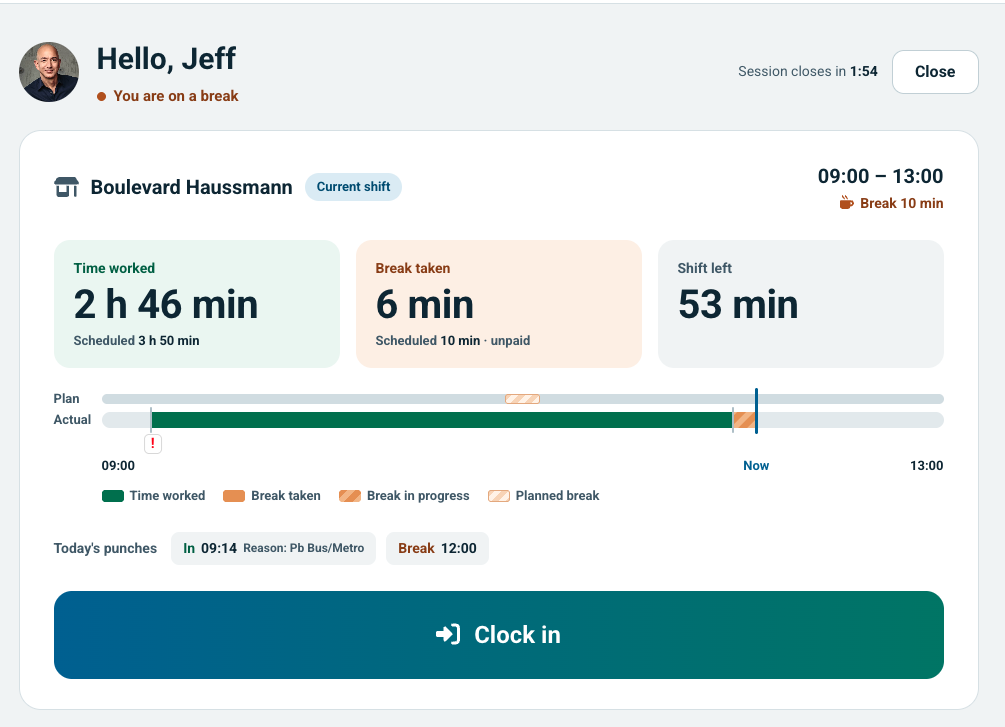
You’ll see your current shift, the time worked, the break taken, the time left in your shift, and today’s punches, along with your pending tasks and notifications. Tap the button to clock in or out.
To take a break, clock out, then clock in again when you return. If you don’t clock in within 2 minutes, the kiosk returns to the home screen.
5. Pending tasks and notifications
Below the shift details, you can see the tasks waiting to be completed and your notifications. To see the details, use the Beam mobile app or a tablet with your Beam user profile.
6. Clocking in outside the tolerance
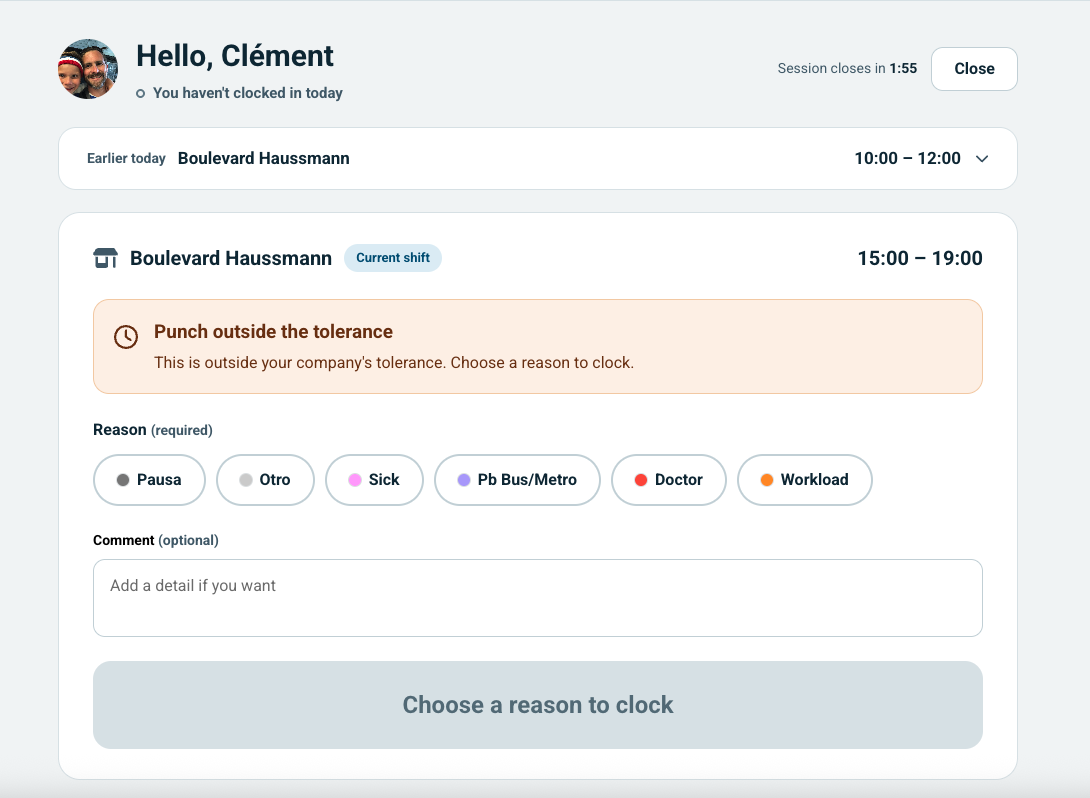
If you clock in outside your company’s tolerance, the kiosk asks you to choose a reason, which is mandatory. Reasons are defined for each calendar. You can add a comment, and your manager will see it in your punch history.
7. Confirmation
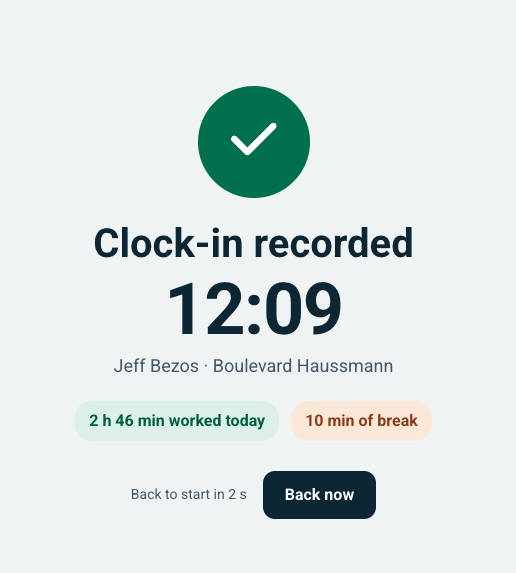
The kiosk confirms the punch time that was recorded and, if applicable, the reason for the punch variance. It automatically returns to the home screen after 5 seconds.
Kiosk settings
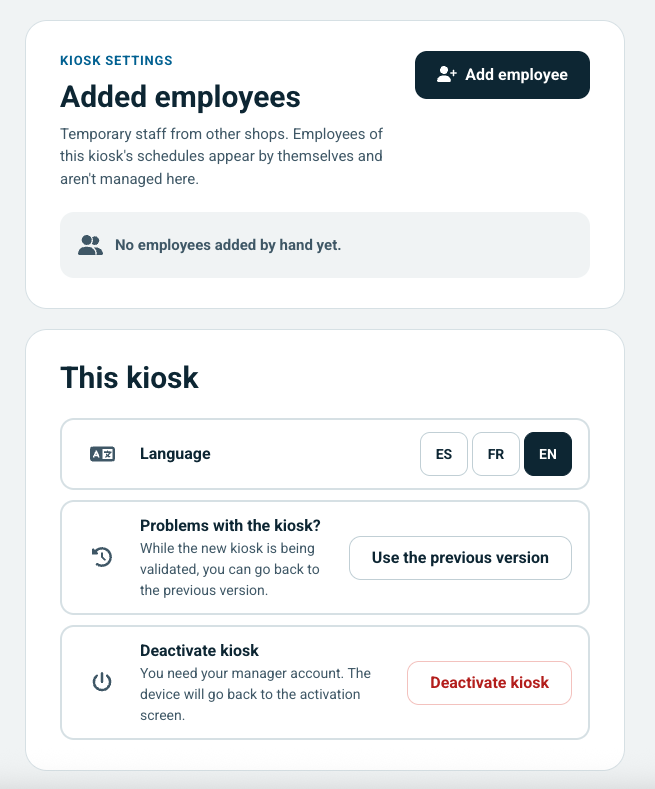
Tap the gear icon, next to the time, on the home screen. Any employee can open the settings. From there you can:
- Add an employee manually, for temporary staff from other locations. Employees from the kiosk’s calendars appear on their own and aren’t managed here.
- Change the kiosk’s language (ES, FR, EN).
- Use the previous version while the new kiosk is being validated.
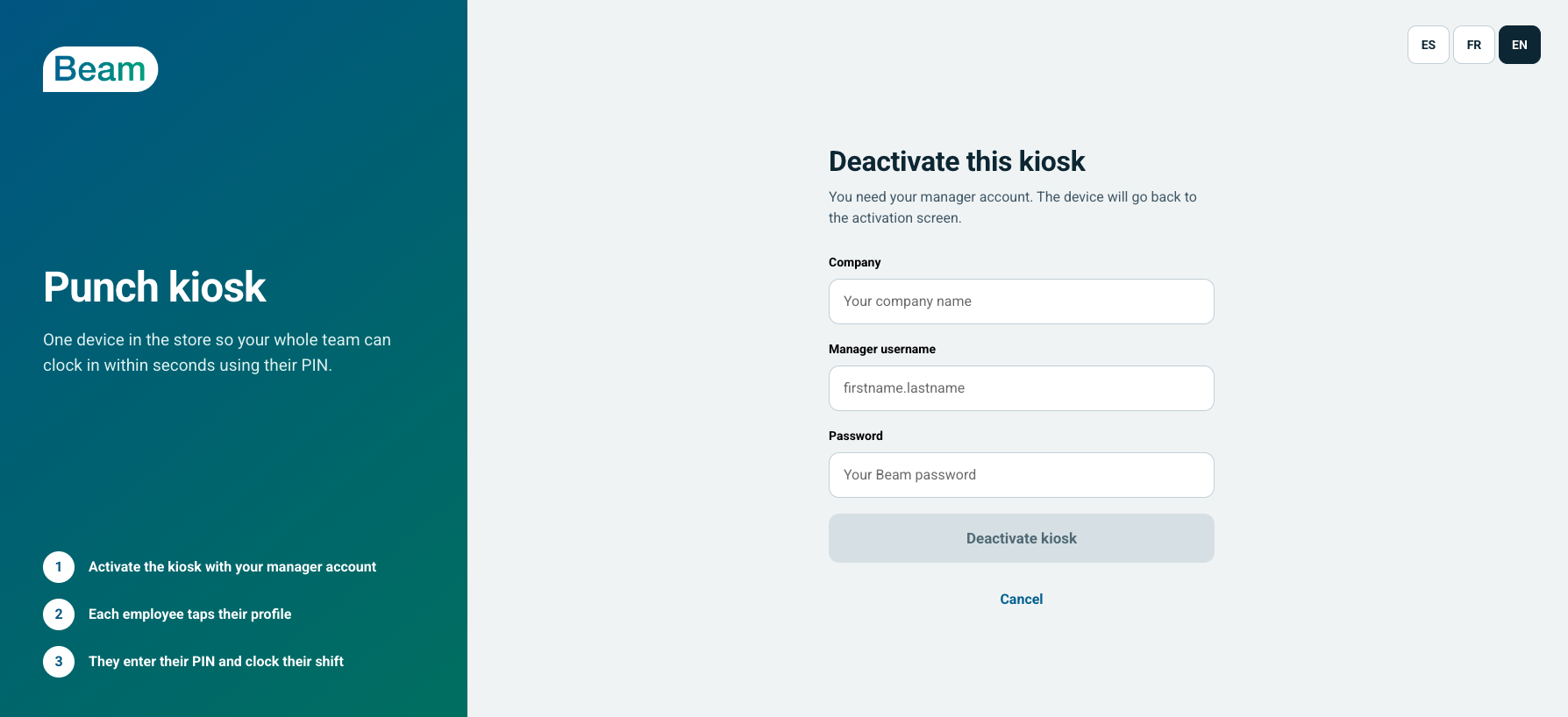
- Deactivate the kiosk. A manager account is required, and the device goes back to the activation screen.
Adjusting a punch
Punches can’t be adjusted from the kiosk. A manager can adjust punches with a variance from the Beam mobile app or web app, using their personal account.
Add a shortcut to your home screen
To have a Beam icon on the device, just like an app, add a shortcut.
On Android (with Google Chrome)
- Open the kiosk address in Chrome.
- Tap the settings button (the three dots at the top right).
- Select Add to Home screen.
- Change the name if you like, then tap Add.
On iPhone or iPad (with Safari)
- Open the kiosk address in Safari.
- Tap the share button (the center icon in the bottom bar).
- Select Add to Home Screen.
- Change the name if you like, then tap Add.
If you uninstall the browser you used, the shortcut disappears as well.
Was this article helpful?
That’s Great!
Thank you for your feedback
Sorry! We couldn't be helpful
Thank you for your feedback
Feedback sent
We appreciate your effort and will try to fix the article